


Taking your first steps into PC gaming is often fraught with mistakes that can detract from the fun. Common mistakes new PC gamers make include neglecting system and hardware optimization. This article will help you avoid these mistakes, improve performance, and make your gaming experience more enjoyable. The first piece of advice for a newbie is to avoid chasing ultra-settings on an old system. A proper approach to settings starts with understanding key concepts.
Part 1: What is FPS in games?
FPS (Frames Per Second) is the frame rate—the number of images your system can process and display on the screen in one second. This metric is a key indicator of in-game performance. The higher the FPS, the smoother and more responsive the image, which is especially important in fast-paced shooters or esports. For beginners, tracking this metric should become a habit—it’s the foundation for any subsequent optimization efforts.
Part 2: What FPS is considered low and what is good?
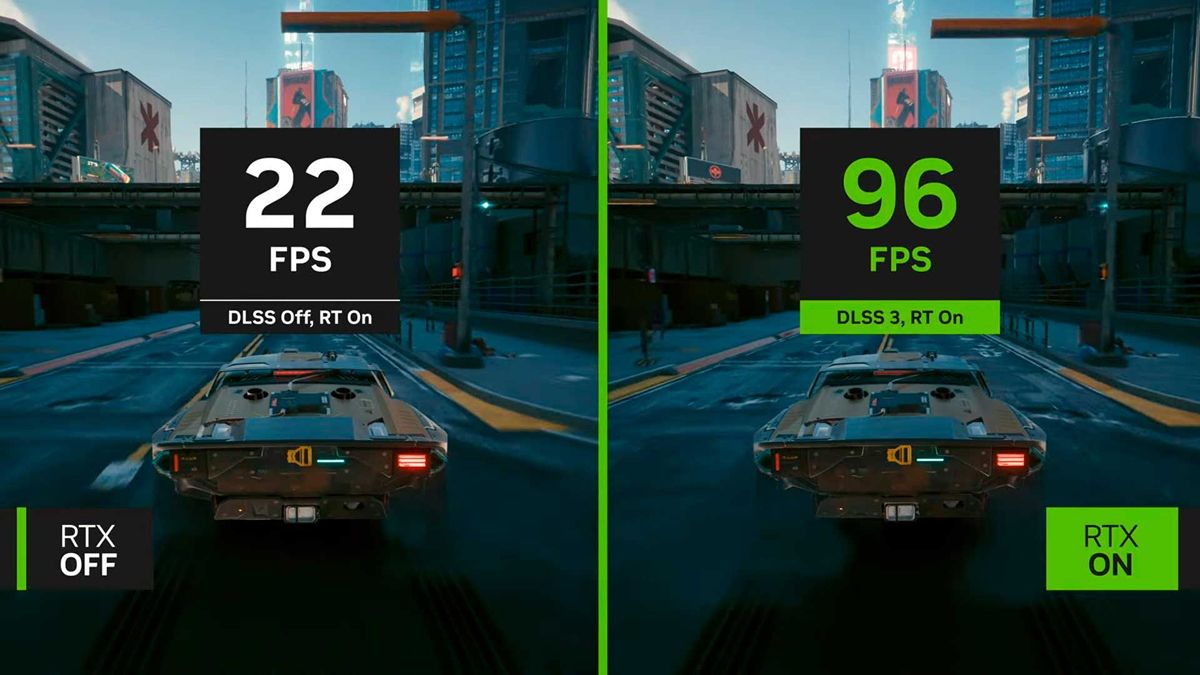
A typical question for beginning gamers: what’s a good frame rate? There’s no universal answer; it all depends on the game genre and the monitor’s capabilities.
- 30 FPS: The minimum threshold for comfortable viewing experience, often used in leisurely story-driven RPGs.
- 60 FPS: The gold standard to strive for. It provides smooth performance in most games and matches the refresh rate of most screens.
- 120 FPS and above: Relevant for fast-paced MOBAs and shooters where reaction speed is important, as well as for monitors with a high refresh rate (144 Hz and above).
Low fps is defined as the frame rate at which you notice jerking, lag, and control delays. A poor frame rate is one at which your frame rate drops below your display’s stated refresh rate.
Part 3: Reasons for Low FPS on a Powerful PC
Even on a powerful PC, fps can be low. Let’s look at the typical causes.
Overheating (throttling)
The most common problem. When the temperature limit is exceeded, the processor (CPU) and graphics card (GPU) automatically reduce their frequencies to avoid burning out, leading to a sharp drop in fps. It’s important for beginners to monitor the temperature and keep their system clean.
Too many background apps
Every program open in the background, especially a browser with dozens of tabs or instant messaging apps, consumes CPU and RAM resources. This creates lag and reduces game performance.
Outdated drivers
A driver is a program that connects the hardware to the operating system. Outdated drivers, especially for graphics cards, can’t unlock their full potential in new games and often cause poor performance.
Incorrect power settings
In Power Saver mode, Windows limits CPU and GPU power to conserve energy, which is unacceptable for gaming. Laptop beginners often encounter this error.
Weak internet connection
For online gaming, not only frame rates are critical, but also ping—the delay between the signal and the server. A poor network connection or an overloaded Wi-Fi router can cause lag, which can be mistaken for low frame rates. Check your network cable and router settings.
Once these causes have been eliminated, you can move on to targeted optimization.
Part 4: How to increase FPS in games?
1. Optimizing the Windows system
Disable unused services and features, such as disk indexing, User Account Control (UAC), and remote access. Make sure your power settings are set to “High Performance.” This is a basic tip that a beginner should do first.
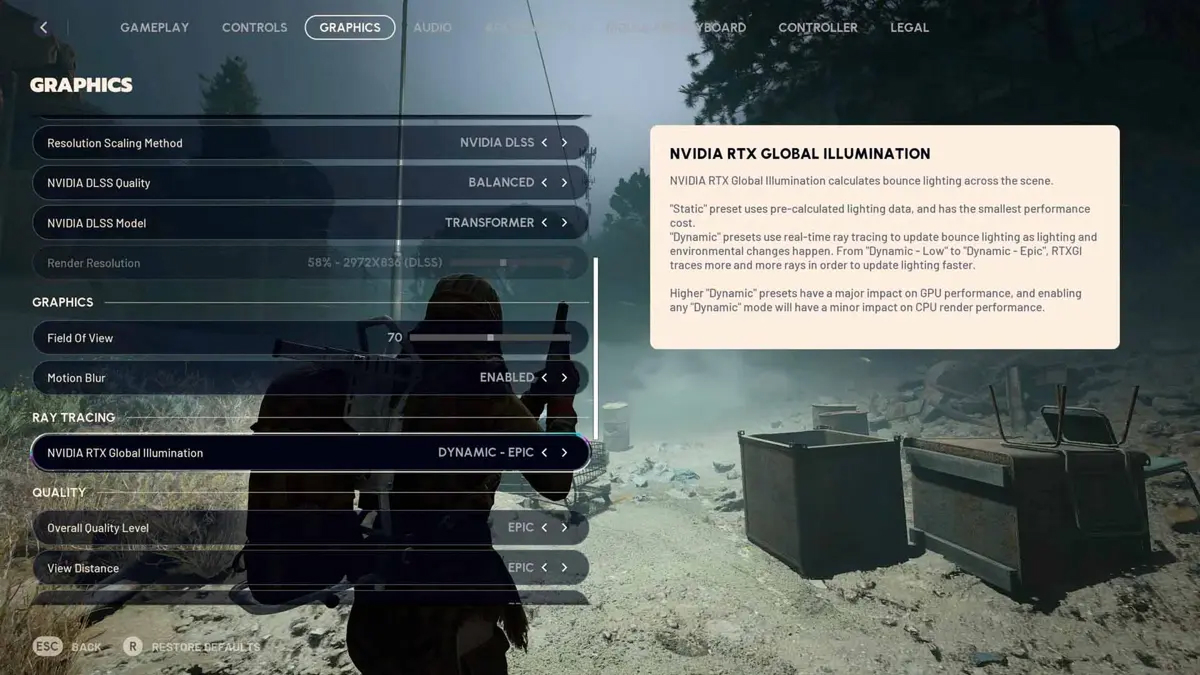
2. Graphics settings in games
Go to your game’s graphics settings. The biggest fps boost comes from reducing or disabling:
- Anti-Aliasing and Shadows.
- Volumetric Lighting and Reflections.
- Screen resolution: lowering it is the most effective, but also the most noticeable way to increase fps.
3. Updating video card drivers
Always download the driver from the manufacturer’s official website (Nvidia or AMD). You can also use proprietary utilities like GeForce Experience, which automatically select the optimal settings for your hardware.
4. Close background applications
Before launching the game, close all unnecessary programs. Use the Task Manager (Ctrl+Shift+Esc) to end processes consuming RAM and CPU resources.
5. Updating computer components
If software solutions don’t help, the problem is hardware. Replacing the graphics card will provide the most significant performance boost. However, before upgrading, make sure your processor won’t become a bottleneck for the new power.
Part 5: Optimizing the Video Card (GPU)
1. Updating video card drivers
Let me repeat, but this is important. For Nvidia, use the Nvidia Control Panel; for AMD, use the Radeon Software. In addition to drivers, there are also fine-tuning options.
2. Setting up performance mode
In the graphics card control panel, find the “Power Management” or “Power Mode” option and set it to “Prefer Maximum Performance.” This will allow the graphics card to operate at full power when gaming.
3. Disable G-Sync / FreeSync
Adaptive sync technologies are great for smoothness, but on low-end PCs they can slightly reduce frame rates. If you’re struggling to keep every frame, try disabling them temporarily.
4. Cleaning the system from dust
Dusty heatsinks and fans can’t cool properly, leading to throttling. Regular (every 6-12 months) thorough cleaning of your PC is a must.
Part 6: Optimizing CPU and RAM
1. Cleaning background processes
In addition to closing programs, check your startup (in the “Startup” tab of the Task Manager) and disable anything you don’t need when Windows starts. This will reduce the load on your CPU and RAM.
2. Disabling antivirus software
While playing, you can disable background antivirus scanning, especially the built-in Windows Defender, which is known for its unsolicited scans. Only do this if you’re confident the files you’re running are safe.
3. Checking the processor temperature
Use programs like HWMonitor or Core Temp. If the CPU temperature in a game consistently exceeds 80-85°C, you may need to replace your thermal paste or consider more efficient cooling.
4. Overclocking RAM
You can enable the XMP (for Intel) or DOCP (for AMD) profile in the BIOS/UEFI to ensure RAM runs at the manufacturer’s specified frequency rather than its base frequency. This is a simple and safe way to achieve a performance boost.
5. Increasing the paging file
If physical memory (RAM) is insufficient, Windows uses the paging file on your disk. Set its initial and maximum size to 1.5-2 times your RAM to ensure system stability.
Part 7: Windows Settings for Gaming
1. Enabling Game Mode
Windows 10/11 has a built-in Game Mode (Settings -> Gaming). It prioritizes system resources for the active game window, disabling some background tasks.
2. Disable screen recording
Disable background game clip recording and automatic screenshot creation in the Game Bar settings. This feature may have a slight impact on performance.
3. Setting up the graphics processor
In the system settings (Settings -> System -> Display -> Graphics Settings), you can manually specify which graphics card (discrete or integrated) to use for a particular game, which is important for laptops.
Part 8: Frequently Asked Questions (FAQ)
Question: I’ve done everything, but the game still lags. What should I do?
Answer: Identify the bottleneck using monitoring software (MSI Afterburner). If the graphics card is 100% loaded, reduce the graphics settings. If it’s the CPU or RAM, optimize the system or plan an upgrade.
Question: Is it possible to use booster programs for optimization?
Answer: Many of them (for example, Razer Cortex) simply automate routine tasks: cleaning RAM, disabling services. Don’t expect them to perform any major miracles, but for a beginner, they can be a handy tool.
Question: How to choose your first gaming peripheral?
Answer: You don’t need a top-of-the-line mouse and keyboard to get started. Comfort is key. The mouse should fit comfortably in your hand, and the keys on the keyboard shouldn’t stick. Pay attention to the size of the mouse pad.
Part 9: Recommendations for choosing a gaming PC
1. Video card (GPU)
A key component for gaming. When building or purchasing, it accounts for a large portion of the budget. Study the latest reviews and tests on YouTube and specialized websites.
2. Processor (CPU)
Don’t skimp on the processor by buying a weak CPU for a powerful graphics card. This is a classic mistake that leads to imbalances and low FPS. The CPU and GPU should be of the same class.
3. Random Access Memory (RAM)
By 2025, a comfortable minimum is 16 GB. For online gaming, streaming, or background work, consider 32 GB. Make sure the memory frequency is supported by your motherboard.
4. Storage devices (SSD/HDD)
Be sure to install games and the operating system on an SSD. This will significantly speed up level loading and overall system performance. The HDD can be used for media storage.
5. Power supply
It’s extremely wrong to skimp on a power supply. Choose a model with a power reserve (20-30% more than the rated power) from a trusted brand with 80 Plus certification. This guarantees stability and protection for all your hardware.

